
06 — Guia de Instalação no Raspberry Pi 4 (Modo Kiosk)
Passo a passo para instalar o sistema de forma definitiva nos 2 carros usando Raspberry Pi 4 (Raspberry Pi OS 64-bit).









🏠 README · 📚 Documentação · ⬅️ 05 · API/IPC · 07 · ADAS 360° ➡️
📑 Neste guia — 7 seções · ~3 min de leitura
- 🗺️ Visão geral em diagrama
- 1. Pré-requisitos no Raspberry Pi OS
- 2. Compilar Frontend e Instalar Backend
- 3. Definir o Carro da Instalação (CARPC_VEHICLE)
- 4. Serviço systemd para Subir o CarPC no Boot
- 5. Abrir a Tela Automaticamente em Modo Kiosk (Dual-Screen: Cluster 1920×720 + Central)
- 6. Ajuste de Vídeo HDMI → AV (RCA) para os Encostos
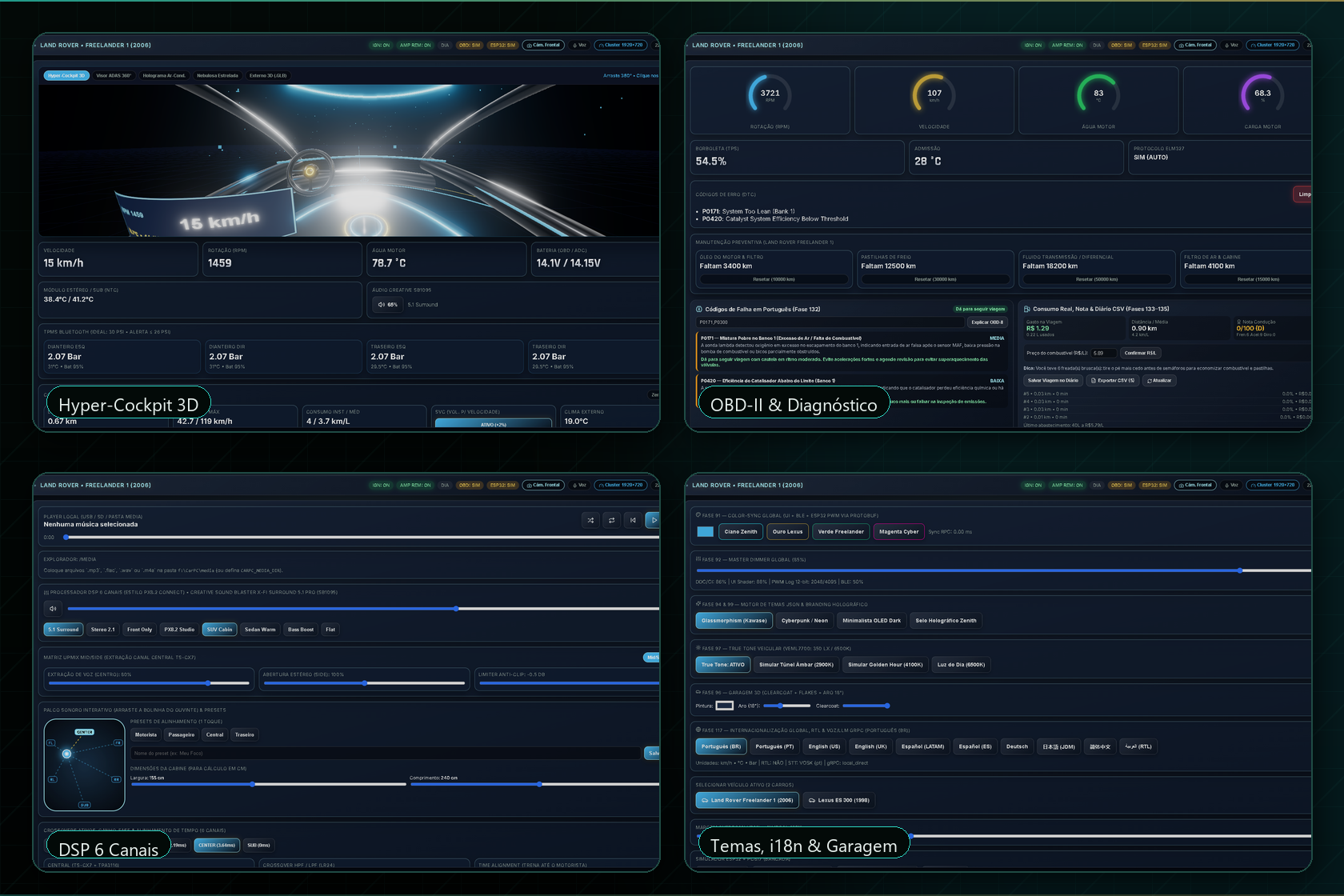
Resultado: central e cluster em tela cheia, com inicialização automática.
🗺️ Visão geral em diagrama
flowchart LR
    A["Raspberry Pi OS"] --> B["Dependências<br/>Python · Node · PipeWire"]
    B --> C["Build frontend + cluster"]
    C --> D["Backend em venv"]
    D --> E["CARPC_VEHICLE"]
    E --> F["systemd zenith-carPC"]
    F --> G["Kiosk Wayland<br/>cluster + central"]

    style A fill:#A22846,color:#fff,stroke:#FCA5A5
    style G fill:#0A5C36,color:#fff,stroke:#C8A951
Como ler: o diagrama resume o fluxo principal deste guia; os detalhes, pinagens, endpoints e trechos de código aparecem nas seções abaixo.
1. Pré-requisitos no Raspberry Pi OS
sudo apt update && sudo apt upgrade -y
sudo apt install -y python3-venv python3-pip nodejs npm chromium-browser alsa-utils git
# Permissão para acessar USB Serial (ESP32 e ELM327)
sudo usermod -aG dialout,video,audio $USER
2. Compilar Frontend e Instalar Backend
cd /opt/carpc  # ou pasta onde clonou/copiou o projeto

# 1. Build de produção da Central Multimídia (HDMI 1)
cd frontend
npm install
npm run build

# 2. Build de produção do Painel Digital 1920x720 (HDMI 0)
cd ../cluster-ui
npm install
npm run build

# 3. Ambiente virtual Python do Backend
cd ../backend
python3 -m venv .venv
source .venv/bin/activate
pip install -r requirements.txt
3. Definir o Carro da Instalação (CARPC_VEHICLE)
Como cada carro terá sua própria instalação fixa, defina o perfil padrão:
- Na Freelander 1 (2006):
CARPC_VEHICLE=freelander_2006 - No Lexus ES 300 (1998):
CARPC_VEHICLE=lexus_es300_1998
(Você também pode trocar a qualquer momento pela aba Ajustes na interface.)
4. Serviço systemd para Subir o CarPC no Boot
Crie /etc/systemd/system/carpc.service:
[Unit]
Description=Zenith AutoOS Dual-Vehicle Backend & UI
After=network.target sound.target

[Service]
Type=simple
User=pi
WorkingDirectory=/opt/carpc/backend
Environment=CARPC_VEHICLE=lexus_es300_1998
Environment=CARPC_MEDIA_DIR=/media/pi/USB_MUSICAS
ExecStart=/opt/carpc/backend/.venv/bin/uvicorn app.main:app --host 0.0.0.0 --port 8000
Restart=always
RestartSec=3

[Install]
WantedBy=multi-user.target
Ative o serviço:
sudo systemctl daemon-reload
sudo systemctl enable --now carpc.service
5. Abrir a Tela Automaticamente em Modo Kiosk (Dual-Screen: Cluster 1920×720 + Central)
O Raspberry Pi 4 suporta 2 telas independentes:
- HDMI 0 (
1920×720TFT Ultrawide atrás do volante): Painel Digital estilo GhostDash Multilink (?mode=cluster) - HDMI 1 (Tela Touch Central): Central Multimídia CarPC completa
No autostart do ambiente gráfico (~/.config/lxsession/LXDE-pi/autostart ou Wayfire/Labwc):
# Tela 1: Painel Digital Ultrawide 1920x720 (projeto cluster-ui/)
chromium-browser --kiosk --window-position=0,0 --window-size=1920,720 --user-data-dir=/tmp/carpc-cluster --noerrdialogs --disable-infobars "http://127.0.0.1:8000/cluster/" &

# Tela 2: Central Multimídia CarPC
chromium-browser --kiosk --window-position=1920,0 --user-data-dir=/tmp/carpc-main --noerrdialogs --disable-infobars --autoplay-policy=no-user-gesture-required "http://127.0.0.1:8000/" &
6. Ajuste de Vídeo HDMI → AV (RCA) para os Encostos
Se as telas RCA cortarem as bordas, ajuste no /boot/firmware/config.txt do Raspberry Pi 4:
disable_overscan=0
overscan_left=16
overscan_right=16
overscan_top=12
overscan_bottom=12
E ajuste fino diretamente na aba Ajustes da interface (Margem Overscan HDMI → AV).
⬅️ 05 · API/IPC · ⬆️ Topo · 📚 Índice · 07 · ADAS 360° ➡️
Zenith AutoOS 11.0 · Documentação técnica · Novembro de 2026 · README principal